Code Signing in Windows Applications
Understanding and verifying digital signatures in Windows applications.
Introduction
Code signing is a security mechanism that uses digital signatures to verify the authenticity and integrity of executables. When an application is signed, any modification to the binary invalidates the signature.
This article covers how to verify code signatures and demonstrates why signature validation matters in application security.
Why Code Signing Matters
Code signing serves two main purposes:
- Authenticity - Confirms the application comes from a verified publisher
- Integrity - Detects any tampering or modification to the executable
Without proper code signing, attackers can:
- Modify legitimate applications without detection
- Distribute trojaned versions of software
- Bypass application whitelisting based on signatures
- Impersonate trusted software vendors
During security assessments, unsigned applications or those using self-signed certificates in production environments should be reported as security findings.
According to OWASP Desktop App Security Top 10, lack of proper code signing falls under DA8 - Poor Code Quality.
File Types That Support Code Signing
Code signing is not limited to executables. Various Windows file types can be digitally signed:
.exe- Executable files.dll- Dynamic-link libraries.sys- System drivers.msi- Windows Installer packages.cab- Cabinet archive files.ocx- ActiveX controls.ps1- PowerShell scripts- and more
This article demonstrates code signing using .exe files, but the same principles apply to other file types.
Demonstration: Signature Verification
We’ll demonstrate how code signing works and how it detects tampering.
Step 1: Create Unsigned Application
Create a simple C++ application:
1
2
3
4
5
6
#include

int main()
{
    std::cout << "Hello World!\n";
}
Build it as x64 Release in Visual Studio.
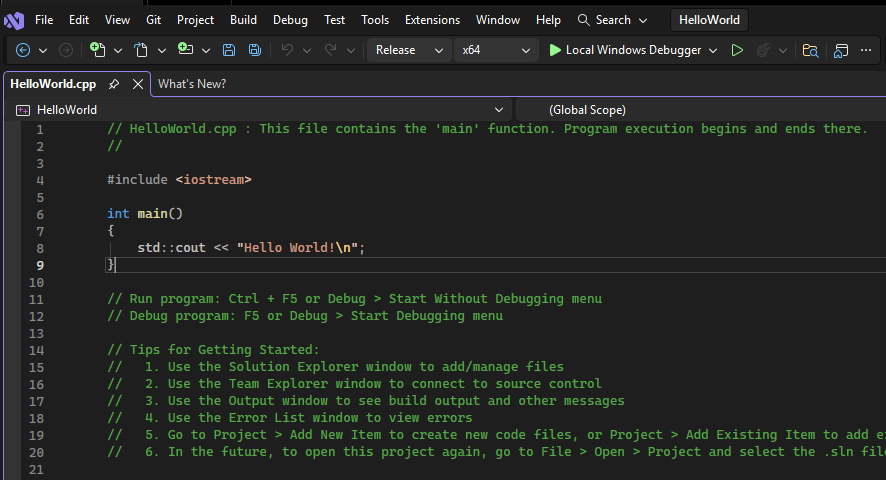 Visual Studio code
The executable will be at x64\Release\HelloWorld.exe.
Step 2: Verify Signature Status
Using Windows Properties:
Right-click the executable → Properties → Digital Signatures tab
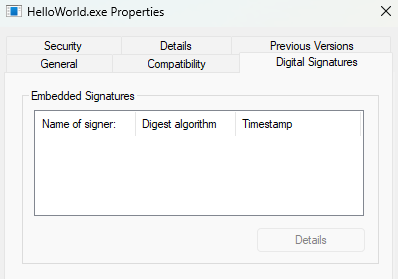 Unsigned application - Digital Signatures tab is empty
Using sigcheck:
Use sigcheck from Sysinternals:
1
2
3
4
5
6
7
8
9
10
11
12
13
14
15
16
17
18
19
PS > .\HelloWorld.exe
Hello World!

PS > sigcheck .\HelloWorld.exe

Sigcheck v2.90 - File version and signature viewer
Copyright (C) 2004-2022 Mark Russinovich
Sysinternals - www.sysinternals.com

C:\path\to\HelloWorld.exe:
        Verified:       Unsigned
        Link date:      07:56 04/01/2026
        Publisher:      n/a
        Company:        n/a
        Description:    n/a
        Product:        n/a
        Prod version:   n/a
        File version:   n/a
        MachineType:    64-bit
Result:
The application is Unsigned - anyone can modify it without detection.
Step 3: Create Self-Signed Certificate
For testing, we’ll create a self-signed certificate. Production environments should use trusted Certificate Authorities like DigiCert, Sectigo, or GlobalSign.
1
2
3
4
5
6
7
8
9
10
11
12
13
# Create certificate
$cert = New-SelfSignedCertificate `
    -Subject "CN=Lab Code Signing Certificate" `
    -Type CodeSigningCert `
    -CertStoreLocation "Cert:\CurrentUser\My" `
    -NotAfter (Get-Date).AddYears(1)

# Export to PFX file
$password = ConvertTo-SecureString -String "LabPassword123" -Force -AsPlainText
Export-PfxCertificate `
    -Cert $cert `
    -FilePath "C:\path\to\codesign.pfx" `
    -Password $password
Step 4: Sign the Application
Use signtool (included in Windows SDK):
1
signtool sign /f codesign.pfx /p LabPassword123 /fd SHA256 HelloWorld.exe
Using Windows Properties:
Right-click the signed executable → Properties → Digital Signatures tab
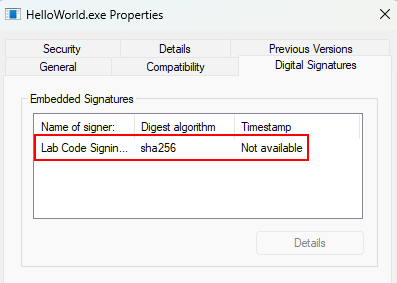 Signed application - Digital Signatures tab shows certificate details
Using sigcheck:
1
2
3
4
5
6
7
8
9
10
11
12
13
14
15
16
PS > sigcheck .\HelloWorld.exe

Sigcheck v2.90 - File version and signature viewer
Copyright (C) 2004-2022 Mark Russinovich
Sysinternals - www.sysinternals.com

C:\path\to\HelloWorld.exe:
        Verified:       A certificate chain processed, but terminated in a root certificate which is not trusted by the trust provider.
        Link date:      07:56 04/01/2026
        Publisher:      Lab Code Signing Certificate
        Company:        n/a
        Description:    n/a
        Product:        n/a
        Prod version:   n/a
        File version:   n/a
        MachineType:    64-bit
The application is signed but shows a warning because the certificate isn’t trusted. This is expected for self-signed certificates.
Step 5: Trust the Certificate (Testing Only)
To simulate a trusted signature, import the certificate to the Trusted Root store:
1
2
3
4
5
6
7
8
9
10
11
# Run as Administrator
PS > Import-PfxCertificate `
    -FilePath "C:\path\to\codesign.pfx" `
    -CertStoreLocation Cert:\LocalMachine\Root `
    -Password (ConvertTo-SecureString -String "LabPassword123" -AsPlainText -Force)

   PSParentPath: Microsoft.PowerShell.Security\Certificate::LocalMachine\Root

Thumbprint                                Subject
----------                                -------
37EC816665AC772A6375F6DD87AA2ED4B84093C5  CN=Lab Code Signing Certificate
Verify again:
1
2
3
4
5
6
7
8
9
10
11
12
13
14
15
16
PS > sigcheck .\HelloWorld.exe

Sigcheck v2.90 - File version and signature viewer
Copyright (C) 2004-2022 Mark Russinovich
Sysinternals - www.sysinternals.com

C:\path\to\HelloWorld.exe:
        Verified:       Signed
        Signing date:   08:08 04/01/2026
        Publisher:      Lab Code Signing Certificate
        Company:        n/a
        Description:    n/a
        Product:        n/a
        Prod version:   n/a
        File version:   n/a
        MachineType:    64-bit
Now the signature is Verified: Signed.
Step 6: Test Tampering Detection
Let’s modify the signed binary to demonstrate signature validation:
- Open
HelloWorld.exein Ghidra - Locate the “Hello World!” string
- Change it to “HACKED!!!!!!”
- Export as
HelloWorld-patched.exe
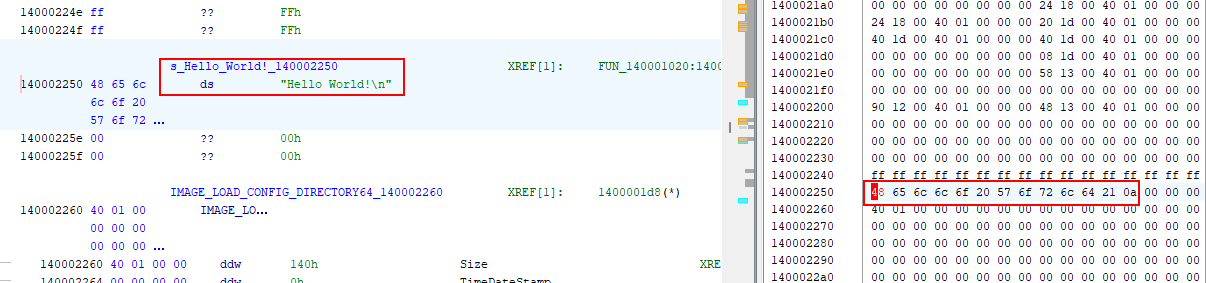 Original “Hello World!” string
 Patched to “HACKED!!!!!!”
Run and verify the patched binary:
1
2
3
4
5
6
7
8
9
10
11
12
13
14
15
16
17
18
19
PS > .\HelloWorld-patched.exe
HACKED!!!!!!

PS > sigcheck .\HelloWorld-patched.exe

Sigcheck v2.90 - File version and signature viewer
Copyright (C) 2004-2022 Mark Russinovich
Sysinternals - www.sysinternals.com

C:\path\to\HelloWorld-patched.exe:
        Verified:       The digital signature of the object did not verify.
        Signing date:   09:38 04/01/2026
        Publisher:      Lab Code Signing Certificate
        Company:        n/a
        Description:    n/a
        Product:        n/a
        Prod version:   n/a
        File version:   n/a
        MachineType:    64-bit
Result:
The digital signature of the object did not verify.
Even a small modification invalidates the signature, preventing undetected tampering.
Conclusion
Code signing protects applications from tampering by verifying authenticity and integrity. During security assessments, unsigned applications or those with self-signed certificates in production should be reported as findings.
Always verify signatures when pentesting Windows applications to identify potential security gaps.